LinkedIn PDF carousels from one JSON file: a Next.js slide page, a Playwright render and Metricool scheduling
Last updated October 2026 · An afternoon to set up, then about 20 minutes a carousel · Free (Next.js and Playwright are open source); Metricool Starter $25/mo to schedule LinkedIn · Builder
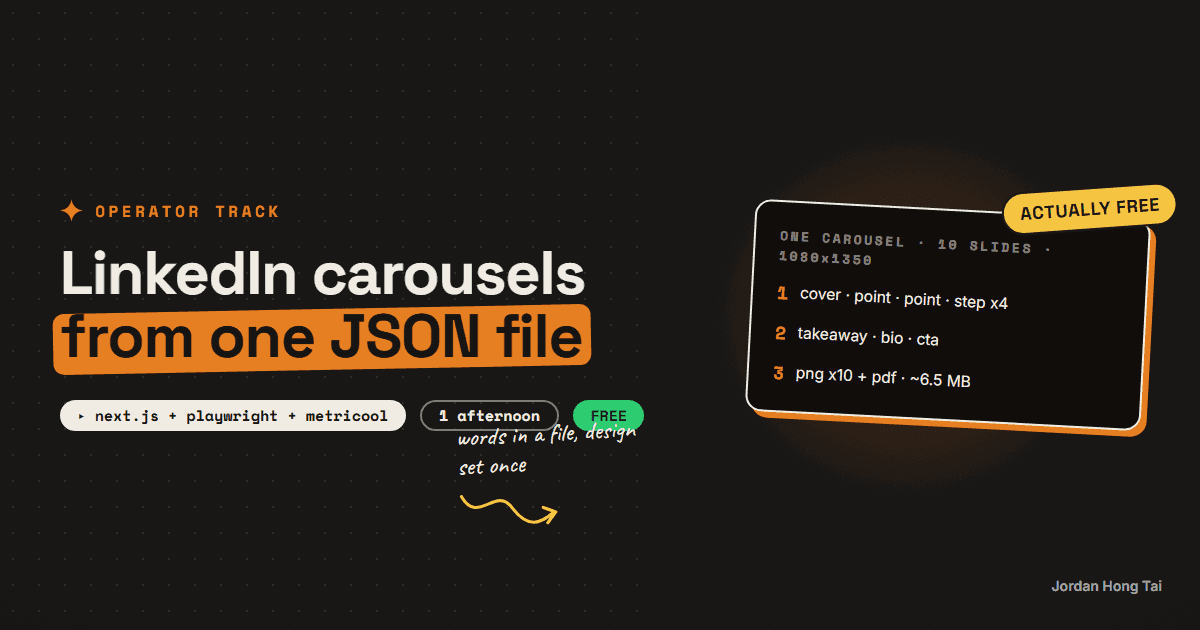
I've made 28 LinkedIn carousels and I haven't opened a design tool for any of them. Each one is about 60 lines of JSON. One Next.js page draws any slide at 1080 by 1350, a Playwright script screenshots all ten and prints the PDF, and Metricool schedules it. Writing the JSON is the only part that takes real time.
I've made 28 LinkedIn carousels and I haven't opened a design tool for any of them. Each carousel is one entry in a JSON file, about 60 to 70 lines. One Next.js page draws any slide at 1080 by 1350 pixels. A Playwright script screenshots each slide and prints the set into one PDF, and Metricool schedules it.
So the only part of a carousel that takes real time is writing the words. The design was decided once, and every carousel since has matched it without me checking the spacing.
This guide is that setup, step by step: the JSON shape, the slide page, the render script, LinkedIn's limits, the two ways Metricool schedules it, and my honest reach numbers, which aren't what you'd expect.
What you'll have when you're done
- A JSON file where each carousel is a list of slides with a role
- One Next.js page that renders any slide of any carousel at 1080x1350
- A Playwright script that turns a carousel into ten PNGs and one PDF
- A scheduled LinkedIn document post in Metricool, with a title
- A way to fix a typo in one line and re-render in about a minute
- [SCREENSHOT: the ten rendered PNGs side by side, and the same carousel open in the LinkedIn preview]
Before you start
- A Next.js project, or any site framework that can render a page from data. My site runs Next.js with the App Router.
- Node.js and Playwright. Playwright is free and open source, and
npx playwright install chromiumgets you the browser. - Metricool on a paid plan to schedule LinkedIn, because LinkedIn isn't on the free plan. Starter is $25 a month billed monthly. You can also just upload the PDF on LinkedIn by hand.
- An afternoon for the first setup if you already know Next.js.
Playwright: playwright.dev Metricool: metricool.com
There's no download pack for this one. The JSON shape, the page and the script are all on the page.
Step 1: Give every slide a role
The trick that makes this work is that slides aren't free-form. Each one has a role, and each role has a fixed layout. Mine uses six roles across ten slides.
slide 1    cover      kicker, 3 title lines, which line gets the swipe, body
slides 2-3 point      kicker, title, body
slides 4-7 step       number, title, body
slide 8    takeaway   kicker, title, body
slide 9    bio        (no fields, the author block is built in)
slide 10   cta        title, url, follow line
Ten slides is a choice, not a LinkedIn rule. It's long enough for a cover, two points, four steps and a takeaway, and short enough that people get to the end.
Check it worked: you can describe every slide in your last carousel with one of the six roles. If one doesn't fit, it's probably two slides squeezed into one.
Step 2: Write the carousel as JSON
All the carousels live in one file. Each key is the slug of the guide it comes from, so the carousel and the guide stay linked.
{
  "carousels": {
    "your-guide-slug": {
      "overline": "AI CONTENT SYSTEMS",
      "slides": [
        {
          "role": "cover",
          "kicker": "A SYSTEM I BUILT",
          "titleLines": ["I MADE 28 CAROUSELS", "WITHOUT A", "DESIGN TOOL"],
          "swipeLine": 2,
          "body": "One JSON file, one slide page, one render script."
        },
        {
          "role": "step",
          "n": 1,
          "title": "Give every slide a role.",
          "body": "Cover, point, step, takeaway, bio, call to action."
        },
        { "role": "bio" },
        {
          "role": "cta",
          "ctaTitle": "The full setup is on my site.",
          "url": "yoursite.com",
          "follow": "Follow for the systems behind the posts."
        }
      ],
      "caption": "The LinkedIn post text goes here."
    }
  }
}
The caption lives next to the slides on purpose. When I schedule, the post text and the slides come from the same entry, so they can't drift apart.
This is also where AI helps the most. I give Claude Code the finished guide and the JSON shape, ask for a draft entry, then rewrite the lines myself so they sound like me. Any AI writer can draft it, because it's just filling fields.
Check it worked: your entry has a cover, a bio and a cta, and every title fits on a phone screen when you read it out loud. If a body runs past three lines on a phone, cut it.
Step 3: Build one page that draws any slide
One page renders every slide of every carousel. The URL says which carousel and which slide, and the page reads the JSON and picks the layout from the role. In the Next.js App Router, that's one file.
// app/slides/[slug]/[n]/page.tsx
import data from "@/content/carousels.json";

type Slide = { role: string; [key: string]: unknown };

export default async function SlidePage({
  params,
}: {
  params: Promise<{ slug: string; n: string }>;
}) {
  const { slug, n } = await params;
  const carousel = (data.carousels as Record<string, { slides: Slide[] }>)[slug];
  const slide = carousel.slides[Number(n) - 1];

  return (
    <div id="artboard" style={{ width: 1080, height: 1350, overflow: "hidden" }}>
      {slide.role === "cover" && <Cover slide={slide} />}
      {slide.role === "step" && <Step slide={slide} />}
      {/* one component per role: point, takeaway, bio, cta */}
    </div>
  );
}
The id="artboard" matters. The render script screenshots only that element, so nothing else on the page leaks into the slide. Mine also prints a page counter, like 04 / 10, in the bottom left of every slide, so people know how far they've got.
Check it worked: open localhost:3000/slides/your-guide-slug/1 in the browser and see the cover at full size. Change a word in the JSON, refresh, and see it change.
Step 4: Render ten PNGs and one PDF with Playwright
Playwright opens a real browser, so the screenshot is exactly what the page draws, fonts included. This script loops through the slides, screenshots each one, then stacks the PNGs into a single PDF.
// scripts/render-carousel.mjs  (run: node scripts/render-carousel.mjs your-guide-slug)
import { chromium } from "playwright";
import { readFileSync, mkdirSync } from "node:fs";

const slug = process.argv[2];
const data = JSON.parse(readFileSync("content/carousels.json", "utf8"));
const count = data.carousels[slug].slides.length;
const dir = `public/carousels/${slug}`;
mkdirSync(dir, { recursive: true });

const browser = await chromium.launch();
const page = await browser.newPage({ viewport: { width: 1080, height: 1350 } });
const images = [];

for (let n = 1; n <= count; n++) {
  await page.goto(`http://localhost:3000/slides/${slug}/${n}`, { waitUntil: "networkidle" });
  await page.evaluate(() => document.fonts.ready);
  const file = `${dir}/slide-${String(n).padStart(2, "0")}.png`;
  await page.locator("#artboard").screenshot({ path: file });
  images.push(readFileSync(file).toString("base64"));
}

const html = `<style>@page{size:1080px 1350px;margin:0}body{margin:0}
img{width:1080px;height:1350px;display:block;page-break-after:always}</style>
${images.map((b64) => `<img src="data:image/png;base64,${b64}">`).join("")}`;
await page.setContent(html, { waitUntil: "load" });
await page.pdf({ path: `${dir}/${slug}.pdf`, width: "1080px", height: "1350px", printBackground: true });

await browser.close();
console.log(`${count} slides and ${slug}.pdf in ${dir}`);
Two things I learned the hard way. Wait for document.fonts.ready, or the first slide renders in a fallback font. And the images go into the PDF as data URIs, because a page made with setContent won't load local file:// images.
My own version also measures each headline and shrinks it a pixel at a time until the widest line fits, because a short line of wide letters can overflow even when the character count looks fine.
Check it worked: you have ten PNGs and one PDF, the PDF has ten pages, and the fonts match the browser. LinkedIn's limits are 100 MB and 300 pages, so check the file size. Mine come out between 6 and 7 MB for ten slides.
Step 5: Schedule it in Metricool, with a document title
Metricool's help page gives two ways to post a carousel to LinkedIn.
Upload the images. Attach up to 20 JPG or PNG files, all the same orientation, and turn on the Image Carousel tab in the LinkedIn settings. Metricool turns them into a carousel. This is the way I do it, because the API takes a list of image URLs and the PNGs are already rendered.
Upload the PDF. Attach the PDF, which can be up to 300 pages, and add a title.
Either way, give it a document title. Metricool's troubleshooting page says LinkedIn rejects a document post without one, with a 400 error. I schedule through Metricool's API from Claude Code, and the LinkedIn part of the request looks like this.
{
  "providers": [{ "network": "linkedin" }],
  "media": ["https://.../slide-01.png", "https://.../slide-02.png", "..."],
  "linkedinData": {
    "documentTitle": "LinkedIn carousels from one JSON file",
    "publishImagesAsPDF": true,
    "previewIncluded": false,
    "type": "post"
  }
}
The image URLs have to be public, so I upload the PNGs to a public storage bucket first. After scheduling, I read the post back and check that all ten images are attached. An API that accepts a field doesn't prove it delivered it.
Check it worked: the scheduled post in Metricool shows ten slides in order and a document title. If it shows one image or none, the upload or the order is wrong, so fix it before the post date.
Step 6: Write the post text so people comment
The slides get the swipe. The text gets the comment. Three rules I follow on every LinkedIn post now.
1. First line says the surprising part, in plain words
2. The domain goes in as plain text (yoursite.com), not an https link
3. The last line is a real question someone could answer in one sentence
The bare domain is a habit from my own early numbers, and I'm less sure of it than I was, for the reason in the next section. The question at the end I'm sure of. LinkedIn is a comments network, and a post that ends on a statement gives nobody a reason to reply.
Check it worked: read your last line out loud. If someone can't answer it in one sentence, rewrite it.
The honest part: my reach numbers
When I set this up, I believed carousels beat text posts on LinkedIn, because my best post ever was a carousel. Then in September I re-read my last four posts at the same age. Two carousels and two text posts landed at 29, 34, 35 and 30 impressions, within four of each other. The text posts got the only reactions, four and two. The carousels got none.
That's two against two, so it isn't a verdict. But it's enough to say that on a small account, format isn't the lever. The system is still worth it to me, because a carousel costs one JSON entry and a minute of rendering, so I can keep posting them while the count grows. I'd just stop promising anyone that carousels get more reach.
What I'd do differently
Fix the roles before the design. Six roles made every carousel easy to write.
Keep the caption in the same entry. The post text and the slides never drift apart.
Read the scheduled post back. Check that every slide is attached before the date, not after.
Judge on comments, not impressions. On a small account, impressions barely move.
FAQ
What size should a LinkedIn PDF carousel be?
I render every slide at 1080 by 1350 pixels, a 4:5 portrait that fills more of the mobile feed than a square. Metricool's help page recommends 1080 by 1080 and calls 1080 by 1350 more effective. LinkedIn's help page lists a 100 MB file size limit and a 300-page limit for documents.
Can Metricool schedule a LinkedIn carousel?
Yes, on a paid plan, since LinkedIn isn't on Metricool's free plan. Metricool's help page gives two ways: upload a PDF, PPT, PPTX, DOC or DOCX of up to 300 pages and add a title, or upload up to 20 JPG or PNG images, all the same orientation, and turn on Image Carousel in LinkedIn settings. The document post needs a title or LinkedIn rejects it.
Do I need to code to make carousels this way?
For this exact setup, yes, a little: one Next.js page and one Node script. If you don't code, the same idea works in Canva with one template and a bulk-create sheet. The point is that the words live in one file and the design is set once.
Do LinkedIn carousels get more reach than text posts?
Not on my account, as far as I can tell. When I re-read my last four posts at equal age in September 2026, two carousels and two text posts were within four impressions of each other, and the text posts got the only reactions. That's two against two, so it isn't a verdict, and I keep posting carousels so the count grows.
Why JSON instead of Canva?
Because the words and the design are separate. Claude Code or any AI writer can draft the JSON from a guide, I can fix a typo in one line, and every carousel matches without me checking the spacing. Changing the design once changes all of them on the next render.
Related guides
Automate your weekly social calendar with Metricool + Claude Code
You'll build the task that plans and schedules your whole week of social posts while you're asleep. Claude Code reads last week's numbers out of Metricool, writes them back into your calendar, plans the next seven days, and pushes every post into the scheduler with autoPublish on. My first full run put 48 posts across 5 networks in one pass.
Turn one guide into 21 X posts with a voice file
One guide holds about seven reusable atoms: a contrarian claim, a number, a mistake, a framework, a step, a tool tip and a question. Each atom becomes three posts in different forms, which is 21. A voice file keeps all 21 sounding like you instead of like a content calendar.
The exact system that writes a week of my content in an hour
You'll build the AI content creation system that turns one topic into a week of platform-ready drafts, in your voice. One hour to set it up, and after that Monday runs the week.
Get the next build in your inbox
One email a week: the newest guides, plus one thing I only share with the list.
No spam. Unsubscribe anytime.
Build alongside others
Join the free community and share what you're shipping.

Jordan Hong Tai
I've scaled products to over 500K users, and now I build AI systems in public from a balcony in Tokyo.