On-brand AI images every time: the reference trick nobody uses
Last updated August 2026 · 10 min · A few image credits · Beginner
You'll stop describing your brand to AI and start handing it references. Ten minutes of setup, and your generated images come back in your palette every run.
Describing your brand to an AI is a translation, and every translation loses something. Consistent AI brand images come from skipping the translation: hand the model references, not adjectives.
What you'll have when you're done
- A reference set: your logo, brand colors, and 2-3 approved images the AI matches against
- A locked style block you paste into every generation, with your exact hex codes
- A before/after test proving the difference
- A small library that makes every future batch more consistent than the last
Before you start
- An AI image tool that accepts reference images. I use Higgsfield; ChatGPT, Gemini, or Canva AI can run a lighter version. Every step below works on any of them.
- Your logo file and product or brand photos, exported as PNG or JPG.
- Your brand colors as hex codes (the six-character codes like #E67E22). No official palette? Pull the codes from your logo with any color picker.
- 10 minutes and a few image credits.
The Higgsfield link above is an affiliate link: if you subscribe through it I earn a commission at no extra cost to you, and you get up to 50% off for the first three hours after logging in. I used Higgsfield for the images in this guide before there was any affiliate program, and the method works the same on the free tier or on a competitor's tool.
Step 1: Stop describing, start referencing
Upload your logo or a brand photo as a reference image alongside your prompt, instead of describing it in words. That one habit change does most of the work.
The difference in mechanics: a description makes the model imagine your brand from scratch every run, so every run drifts differently. A reference pins the look, so the model matches instead of guesses.
Check it worked: your image tool shows your logo or brand photo attached as a reference, separate from the text prompt.
Step 2: Write your style block once
A style block is one reusable paragraph that describes your brand's visual world with exact values. Write it once, paste it into every generation. Fill in this template:
[MOOD] environment ([background hex], [undertone note, e.g. "warm
brown-black, zero blue undertone"]), lit by [accent color name] accents
([accent hex]), [highlight color] highlights ([hex]), [texture, e.g.
"subtle film grain"], [style energy, e.g. "clean editorial" /
"tactile screen-print poster" / "playful 3D"], shallow depth.
No text of any kind, no faces, no logos.
For calibration, here is my real one, the exact block that generated every element in my feed assets:
Moody warm charcoal environment (#161412, warm brown-black, zero blue
undertone), lit by ember-orange accents (#E67E22) and soft amber glow,
warm off-white highlights (#F2ECE3), subtle film grain, tactile
screen-print gig-poster energy, shallow depth. No text of any kind,
no faces, no logos.Check it worked: your style block reads back with exact hex codes in it, not color adjectives.
Step 3: Generate with block + references
Every generation now takes the same shape: your style block, plus your references, plus one line describing the subject. Only the subject line changes between generations.
[paste your style block]

Subject: [one line, e.g. "a tiny robot assembling a stack of paper
zines on a workbench"]
Attach your reference images to the same generation.
Check it worked: the output lands in your palette: your background tone, your accent color, no stray brand-off colors.
Step 4: Run the two-generation test
Prove the trick to yourself. Generate the same subject twice:
- Describe-only: the subject line plus a written description of your brand ("warm orange accents, dark background"), no references, no hex codes.
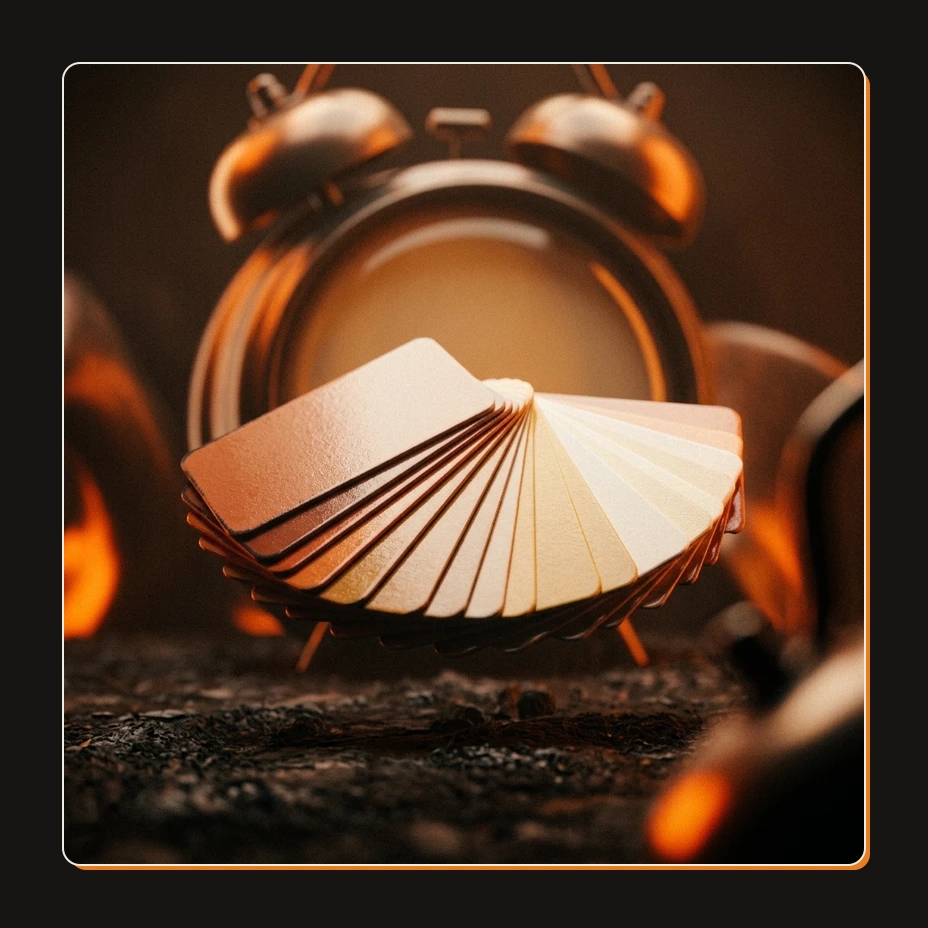
- Reference: the full style block plus your reference images.
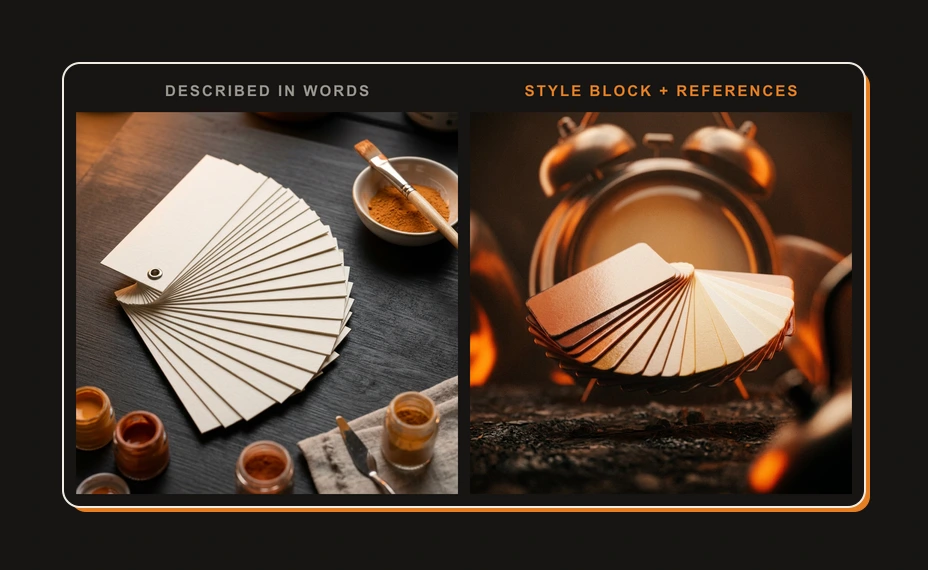
Put them side by side. The describe-only version is a stranger's guess at your brand. The reference version is your brand.
Check it worked: you can instantly tell which is which, and so could a follower. The labeled comparison at the top of this guide is exactly this test, run once.
Step 5: Build the library that compounds
Consistency across weeks comes from a feedback loop:
- Make a folder called brand-elements.
- Every time a generation is on-brand, save it there. If it's off-brand, reject and rerun. Never patch a bad output; edits compound the drift.
- For the next batch, attach 2-3 approved images from the folder as style references alongside your style block.
Each batch now inherits the last batch's look. My element library runs exactly this way, down to a manifest file recording which prompt produced which element.
Check it worked: your second batch, generated with library references attached, matches your first batch without you re-describing anything.
Brand image prompt pack + reference checklist
FAQ
Which AI image tool do I need?
Any tool that accepts reference images alongside the prompt. I use Higgsfield; recent versions of ChatGPT, Gemini, and Canva's AI can do a lighter version of the same trick. The workflow matters more than the tool.
Why not just describe my brand colors in the prompt?
Because 'warm orange' means a thousand different oranges to a model. A reference image plus exact hex codes removes the translation step. Describing is asking the model to guess; referencing is showing it the answer.
Can the AI generate my logo into the images?
Don't let it. Generated logos morph: letterforms bend, spacing drifts, and you end up with something almost-yours, which is worse than nothing. Generate the scene without the logo, then place the real logo file on top in your design tool. Text is the same story.
What if the output still drifts off-brand?
Reject and rerun, never patch. Editing a bad generation compounds the drift. Check your style block has exact hex codes, add 2-3 approved images as references, and generate again. Consistency comes from the inputs, not from fixing outputs.
How do I keep images consistent across weeks, not just one session?
Build the library (step 5). Save every approved image in one folder and use 2-3 of them as style references for the next batch. Each batch inherits the last one's look, and the style compounds instead of resetting.
Related guides
Make AI sound exactly like you (the voice file trick)
AI content sounds like AI because the model has never met you. In 15 minutes you'll build the one file that fixes it: a voice file the AI loads before writing anything.
The exact system that writes a week of my content in an hour
You'll build the AI content creation system that turns one topic into a week of platform-ready drafts, in your voice. One hour to set it up, and after that Monday runs the week.
I'm rebuilding my whole site with AI, in public (part 1)
I'm tearing my website down and letting AI rebuild it, with every phase documented in public. Part 1 covers the three documents that made the whole thing survivable, and what actually happened in the first phases.
Get the next build in your inbox
One email a week: the newest guides, plus one thing I only share with the list.
No spam. Unsubscribe anytime.
Build alongside others
Join the free community and share what you're shipping.
Jordan Hong Tai
I've scaled products to over 500K users, and now I build AI systems in public from a balcony in Tokyo.