Turn Gemini into a coach that tells you why a video went viral (free)
Last updated November 2026 · 20 min for the first video · Free · Beginner
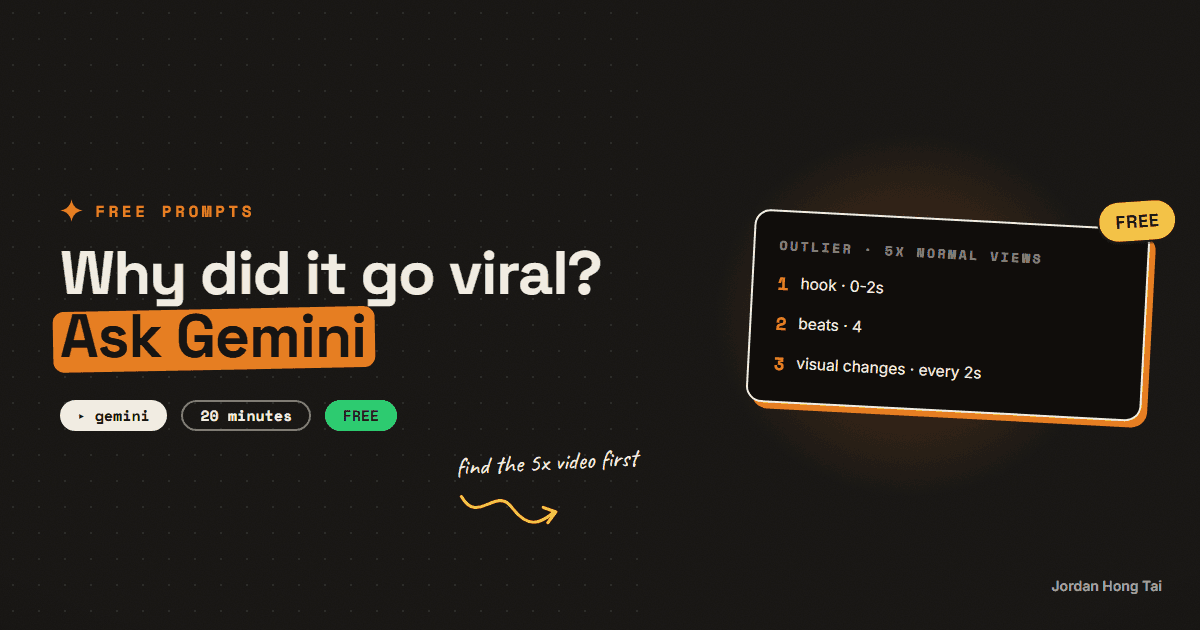
Most people don't know you can upload a video to Gemini and it actually watches it. Here's how to find a real outlier, get Gemini to break down exactly why it worked, and turn that into a template for your own topic.
If you want to know why a video went viral, you can just upload it to Gemini and ask. Gemini watches the file, so it can tell you what was said, what was on screen and when each cut happened. This guide is the three-step version: find a real outlier, get Gemini to break it down, then turn the breakdown into a template for your own topic.
What you'll have when you're done
- A short list of outlier videos in your niche, picked by numbers instead of gut feel
- A written breakdown of each one: the hook, the structure, and every visual change with a timestamp
- A fill-in-the-blanks template built from 3 outliers, so you copy the shape and never the video
- [SCREENSHOT: a finished Gemini breakdown with timestamps down the left side]
Before you start
- A Google account and the Gemini app (gemini.google.com or the phone app). The free plan can take video uploads.
- Know the limits before step 2. Google's help page says each video can be up to 2 GB, and free accounts get up to 5 minutes of total video length. Google AI Pro or Ultra raises that to 1 hour. There are also rolling limits on how much you can upload in a period of time, so check the current limits in the app if an upload gets refused.
- Your phone's built-in screen recorder.
- 20 minutes for the first video. The next ones go faster.
Step 1: Find an outlier on a profile grid
An outlier is a video that got about 5 times that creator's normal views. That gap is the whole point. A big account gets big views on everything, so a big number alone tells you nothing. A video that beats its own creator by 5x tells you the video did the work, not the account.
You can do this with your eyes, no tools:
- Pick a creator in your niche and open their profile. On Instagram, tap the Reels tab. On TikTok and YouTube Shorts, the main grid works. Each tile shows its view count.
- Look at the last 15 to 20 tiles and find the normal number. Ignore the biggest and smallest few. If most tiles sit around 20K, the normal is 20K.
- Multiply by 5. Here that's 100K. Any tile at or above it is an outlier.
- Skip pinned videos at the top of the grid (they're often old hits) and anything posted in the last couple of days (the views are still coming in).
[SCREENSHOT: a profile grid with the normal tiles circled in one colour and the outlier circled in another]
Check it worked: you have at least one video that beats its creator's normal views by about 5x, and you can say what that normal number is.
Step 2: Screen record it and upload it to Gemini
Play the video from the start and screen record the whole thing with the sound on. On iPhone, the screen recorder lives in Control Center. On Android, it's in Quick Settings. Trim off the bit before the video starts and after it ends.
Then open Gemini, start a new chat, tap the plus or upload button, add the recording, and paste this:
I've uploaded a short-form video that got about 5x its creator's
normal views. Watch the whole thing, including the audio, and break
it down for me. I'm studying why it worked, not copying it.

1. HOOK (first 3 seconds): the exact words spoken, any text on screen,
   and what the viewer sees. Then say in one line why it stops the
   scroll.
2. STRUCTURE: list each beat of the video in order with a timestamp
   and one line on what that beat does (sets up the problem, gives
   the first step, adds proof, and so on).
3. EVERY VISUAL CHANGE: a timestamped list of every cut, zoom, new
   graphic, text change, b-roll clip or camera switch. Note roughly
   how many seconds pass between changes.
4. AUDIO: music, sound effects, pace of speech, and where the sound
   changes.
5. ENDING: how it ends and what it asks the viewer to do.
6. WHY IT WORKED: the 3 biggest reasons, each tied to a timestamp.

If you can't see or hear something clearly, say so instead of
guessing.Check it worked: you have a breakdown with a hook section, a timestamped beat list and a timestamped list of visual changes, and the timestamps you spot-checked match the video.
Step 3: Turn the breakdown into a template for your topic
The breakdown tells you what happened. The template is what you can use, and I think it's the step that matters most. I'd skip the whole method before I'd skip this part. In the same chat, send:
Turn that breakdown into a fill-in-the-blanks template I can use for
my own topic: [your topic, e.g. "meal prep for busy nurses"].

Rules:
- Keep the shape: same number of beats, same order, same job for
  each beat, and roughly the same timing.
- Replace every specific word, example and claim with a blank in
  [BRACKETS] that says what goes there, e.g. [a mistake your viewer
  makes every week].
- For each beat, add a one-line note on the visual that should be on
  screen and when it should change.
- Do not reuse any sentence, phrase or joke from the original video.
- Then fill the template in once for my topic as an example, and
  mark which parts I should replace with my own story.
Check it worked: you have a template where every line is a bracketed blank or a visual note, plus one filled-in example that doesn't share a single sentence with the original.
Step 4: Do it on 3 outliers and find the pattern
One video can be a fluke. Three outliers in the same niche show you what keeps working. Repeat steps 1 to 3 for two more outliers, ideally from different creators. Then open a new chat, paste in all three breakdowns, and send:
Here are breakdowns of 3 outlier videos from my niche. Compare them.

1. What do all 3 hooks have in common? What's different?
2. What structure do they share, beat by beat?
3. How often does the visual change in each one, and what kind of
   change is most common?
4. What did none of them do that I might expect?

Then merge the 3 into one master template for [your topic], using
the same bracketed-blank format as before. Only keep a beat in the
master if at least 2 of the 3 videos use it.
When I ran this method on one creator's last 84 reels, sorting by "5x the usual" is what cut the list down to the handful worth studying. That's also how I picked the hook for the reel that sent you here.
Check it worked: you have one master template, and every beat in it shows up in at least 2 of your 3 outliers.
Step 5: Write your video from the template
Fill in the blanks with your own story, your own example and your own words. The template gives you the order, the timing and where the visuals should change. Everything inside the brackets comes from you.
If you want a second opinion before you film, paste your filled-in script back into Gemini with this:
Here's my script, written from the master template. Check it against
the template: does each beat do its job, and is any line too close
to one of the original videos? Point out anything that sounds copied.
Check it worked: your script follows the template's beats and none of its lines come from the original videos.
No Gemini? Use a transcript with ChatGPT or Claude
Claude can't watch video files, so you can't upload a reel to it. ChatGPT and Claude can still work from a transcript. On YouTube, open the description and tap Show transcript, then copy it. For a reel without one, type out what's said while you watch. Paste it in with the breakdown prompt from step 2 and add a short note on what's on screen at each line.
You'll get a good read on the hook and the structure this way. You'll lose most of the visual-change list, because a transcript only holds the words.
Study the structure, never copy the video
This method only works if you stay on the right side of one line. You're studying structure: the order of beats, the timing, where the visuals change. You're not taking the content.
- Keep the screen recording private, use it for the breakdown, then delete it.
- Never re-upload someone's video, clip it into yours, or post their breakdown as your own content.
- Never reuse their script, their jokes or their examples. The template has blanks for a reason.
If a stranger watched your video next to theirs, they should see the same shape and nothing else.
FAQ
Can Gemini watch videos on the free plan?
Yes. You can upload video files to the Gemini app on the free plan. Google's help page says each video can be up to 2 GB and free accounts get up to 5 minutes of total video length, which covers most reels and Shorts. Rolling limits also apply, so check the current limits in the app if an upload is refused.
What does Google AI Pro add for video?
Google's help page says Google AI Pro or Ultra extends the total video upload length from 5 minutes to 1 hour and raises other upload limits. For breaking down short-form videos one at a time, the free plan is usually enough.
Can I just paste a YouTube link into Gemini?
Gemini can answer questions about public YouTube videos. Google's help page doesn't say how much of the picture it reads that way, though, and reels from Instagram or TikTok aren't YouTube links anyway. For a cut-by-cut breakdown, upload a screen recording.
Can I do this with ChatGPT or Claude instead?
Claude can't watch video files, so upload doesn't work there. Both ChatGPT and Claude can work from a transcript: copy it from YouTube's Show transcript option or type it out, then use the same breakdown prompt. You'll get the hook and structure, but you'll lose most of the visual changes.
How do I know a video is an outlier?
Look at the last 15 to 20 videos on the creator's profile grid and find the normal view count, ignoring the biggest and smallest few. Multiply it by 5. Any video at or above that number is an outlier. Skip pinned videos and anything posted in the last couple of days.
Is it okay to screen record someone else's video?
Use the recording privately to study structure, then delete it. Never re-upload it, clip it into your own video, or reuse the creator's script, jokes or examples. The template keeps the shape and leaves every word for you to fill in.
Related guides
A hook lab without trial reels: test 3 openers per reel when Instagram locks you out
Instagram's trial reels feature needs roughly 1,000 followers. My account had 13. That is not a small gap you close in a month, so the entire trial-reel A/B protocol was unusable and I had to replace it with something that works at any account size. This guide is that replacement: three hooks per reel in different archetypes, one variant shipped per platform so every reel gets three real reads instead of one, every post tagged so the clicks are separable, and a set of hard decision rules that stop you retiring a hook on noise.
Is my YouTube Short breaking out? The day-2 check before you make a part two (free Claude Code skill + sheet formula)
One of my Shorts hit three times my usual views on day one and my tracker told me to make a part two. A day and a half later it had 38 more views. This is the day-2 check I use now before I make a follow-up to any Short.
Turn Claude into your trend researcher (10 minutes, free)
You'll set up a Claude Project that answers the question 'what should I post about today?' with a ranked, source-linked list on demand. It takes 10 minutes and works on the free plan.
Get the next build in your inbox
One email a week: the newest guides, plus one thing I only share with the list.
No spam. Unsubscribe anytime.
Build alongside others
Join the free community and share what you're shipping.

Jordan Hong Tai
I've scaled products to over 500K users, and now I build AI systems in public from a balcony in Tokyo.