Turn Notion into your AI operating system (free template)
Last updated July 2026 · 30 min · Free · Comfortable
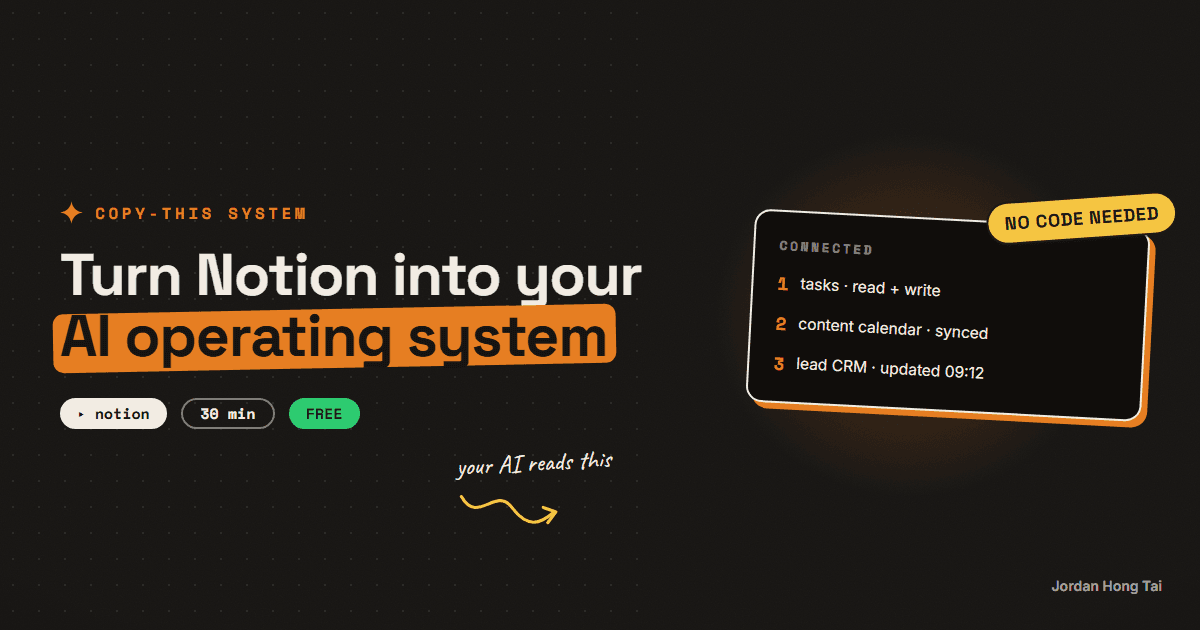
You'll share three Notion databases with an AI that can read and write them: your content calendar, your tasks, and your leads. Thirty minutes, all free, and the first live write happens in step 5.
A Notion AI workflow means your AI reads and writes the same three databases you live in, instead of you copy-pasting between a chat window and your workspace. My system runs on exactly this setup; here's the whole build.
What you'll have when you're done
- Three connected databases: content calendar, task manager, lead CRM
- A free integration that lets AI read and update them, scoped to only those three
- Claude planning next week's content directly into your calendar while you watch
- A schema that automations can build on later (my morning research and content engine write into this same setup)
Before you start
- A free Notion account.
- A Claude account (free plan works for the chat version).
- 30 minutes.
Step 1: Build the three databases
Create three full-page databases in Notion. The property names and options below matter; automations look things up by exact name, so copy them precisely.
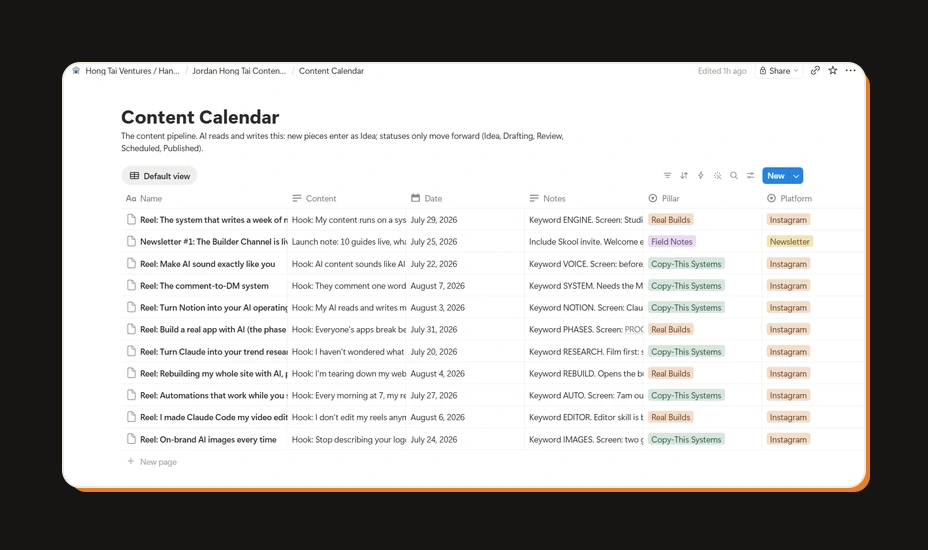
Content Calendar (this is the load-bearing one):
- Name (title): the piece's working title
- Platform (select): Instagram, LinkedIn, X, Newsletter
- Pillar (select): your 3-4 content themes
- Status (select): Idea, Drafting, Review, Scheduled, Published
- Date (date): planned publish date
- Content (text): the draft or summary
- Notes (text): anything to remember
Task Manager: Name (title), Status (select: To Do, Doing, Done), Due (date), Notes (text).
Lead CRM: Name (title), Status (select: New, Talking, Proposal, Won, Lost), Source (select), Last Touch (date), Notes (text).
This Content Calendar schema, down to the five status options, is the exact one my own integration reads and writes.
Check it worked: three databases exist, and the Content Calendar's Status select shows exactly five options: Idea, Drafting, Review, Scheduled, Published.
Step 2: Create the integration
An integration is a robot account with its own key. Go to notion.so/my-integrations, click New integration, name it (mine is just "AI"), pick your workspace, and save. Copy the Internal Integration Secret it shows you; that's the key.
Treat the key like a password: it goes into tools you trust, never into a public chat or a shared doc.
Check it worked: your integration appears at notion.so/my-integrations and you've copied the secret somewhere safe.
Step 3: Share the three databases with it
The integration can only see what you explicitly share. On each of the three databases: open it as a full page, click the ••• menu top-right, find Connections, and add your integration.
This scoping is the safety model. The AI gets those three databases, not your journal.
Check it worked: each database's Connections list shows your integration. All three, or step 5 half-works.
Step 4: Connect Claude and teach it the rules
Two paths, pick by comfort:
- No-code path: in Claude's settings, enable the official Notion connector and grant it access. Claude can now search and edit your Notion from any chat.
- Builder path: your integration token also works with Notion's plain REST API, which is how my own system does it (no SDK, just HTTP calls). That's what lets a scheduled automation write to your calendar at 7am without you in the loop. Start with the connector; graduate to the API when an automation needs it.
Either way, create a Claude Project called Notion OS and paste the operating rules:
You manage my Notion workspace. Three databases are shared with you:
Content Calendar, Task Manager, Lead CRM.

Content Calendar properties, exactly:
- Name (title), Platform (select: Instagram, LinkedIn, X, Newsletter),
  Pillar (select), Status (select: Idea, Drafting, Review, Scheduled,
  Published), Date (date), Content (text), Notes (text)

Rules:
- New content pieces always enter as Status: Idea.
- Statuses only move forward: Idea, Drafting, Review, Scheduled,
  Published. Never skip backward without me saying so.
- Never delete a row. If something is cancelled, write it in Notes.
- Always use the exact property names and select options above. If a
  value doesn't fit an existing option, ask me instead of inventing
  a new one.
- When I ask "what does this week look like", answer from the Date
  field, sorted by date, grouped by platform.
Check it worked: the Notion OS project exists with the rules saved, and Claude can see your databases (ask it to list the Content Calendar's properties as a test).
Step 5: The first live write
In the Notion OS project, run the money prompt:
Plan next week in my Content Calendar: 3 Instagram pieces and 1
newsletter piece from my usual pillars. Create the rows with sensible
dates, everything as Status: Idea, and a one-line Content summary
each. Then show me what you created.
Switch to Notion and watch the rows appear. That moment, AI writing into the workspace you actually live in, is the whole operating system.
From here it compounds: "move the reel to Thursday", "what's stuck in Drafting?", "add everyone who replied today to the CRM as New". Same rules, same three databases.
Check it worked: four new rows sit in your Content Calendar with Status: Idea and real dates. The calendar screenshot at the top of this guide is exactly that, a few prompts later.
The Notion OS pack: schemas, AI rules, connection guide
FAQ
Do I need Notion's paid plan or Notion AI?
Neither. The free Notion plan supports databases and integrations, and you're bringing your own AI (Claude), not buying Notion's. The integration token is free too. The whole stack costs nothing.
Is it safe to give AI write access to my Notion?
You control the blast radius: the integration can only touch databases you explicitly share with it, nothing else in your workspace. Start with the three databases from this guide, add the never-delete rule from step 4, and expand access only when the AI has earned it.
What's the difference between the connector and the API route?
Notion's official Claude connector is the no-code path: enable it and Claude can work with your pages in chat. The API route (an integration token) is the builder path that automations can use, like a morning cron writing to your calendar. Start with the connector; the databases are built the same either way.
Why these exact three databases?
Content calendar, tasks, and leads cover the three loops a one-person operation runs: what you publish, what you do, and who you talk to. They're the same trio my own system reads and writes. Add more later; three is the working minimum.
Why do the property names and status options have to match exactly?
Because automations look properties up by name. If the AI writes Status: Drafting and your database has 'In Progress' instead, the write fails or lands as a new stray option, silently. Exact names are what make the difference between an operating system and a junk drawer.
Related guides
Automations that work while you sleep (free, no Zapier)
You'll put your AI research on a timer: it runs at 7 in the morning and the results are waiting when you wake up. Twenty minutes of setup, no Zapier, no subscription.
The exact system that writes a week of my content in an hour
You'll build the AI content creation system that turns one topic into a week of platform-ready drafts, in your voice. One hour to set it up, and after that Monday runs the week.
Build a real app with AI without it falling apart (the phase method)
You'll set up the phase method: the plan file, the progress tracker, and the checkpoints that keep an AI-built app from collapsing halfway through. It's the exact method that rebuilt the site you're reading right now.
Get the next build in your inbox
One email a week: the newest guides, plus one thing I only share with the list.
No spam. Unsubscribe anytime.
Build alongside others
Join the free community and share what you're shipping.

Jordan Hong Tai
I've scaled products to over 500K users, and now I build AI systems in public from a balcony in Tokyo.